Getting Started With FaceScreen on Mac
Learn what FaceScreen does: camera overlays, branded text labels, and Ring Light. Then set it up for cleaner screen shares and recordings.
What FaceScreen is
FaceScreen is a Mac menu bar app that keeps your face and brand on screen above everything else, which makes it a strong fit for screen recordings, live demos, and meetings where viewers should see who is talking.
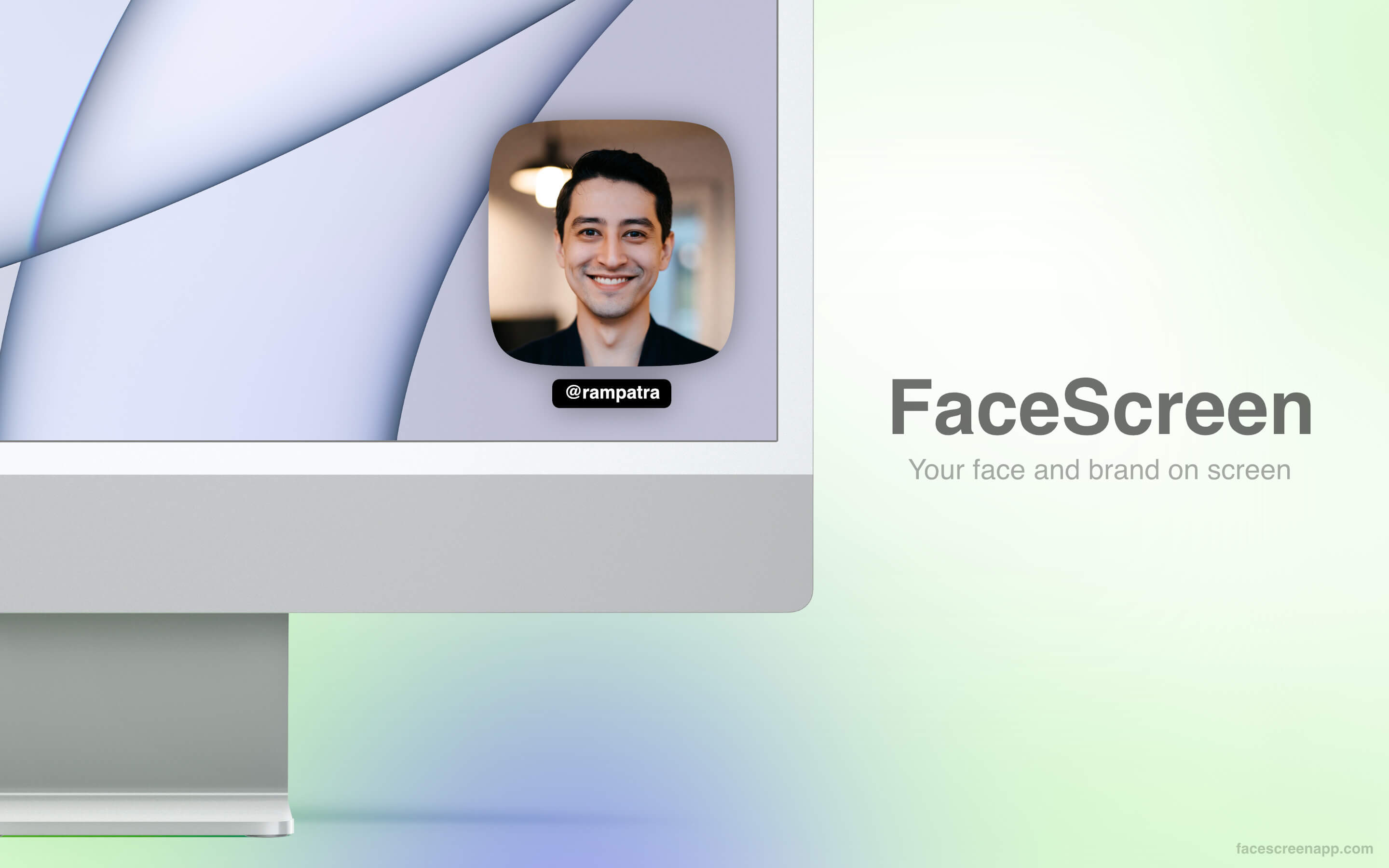
Core features
Camera overlay
FaceScreen shows a floating live camera view on top of all windows, including many full-screen apps. You can drag it anywhere (including another display), tweak shape, size, borders, zoom, mirroring, and more, so the bubble fits your layout instead of fighting it.
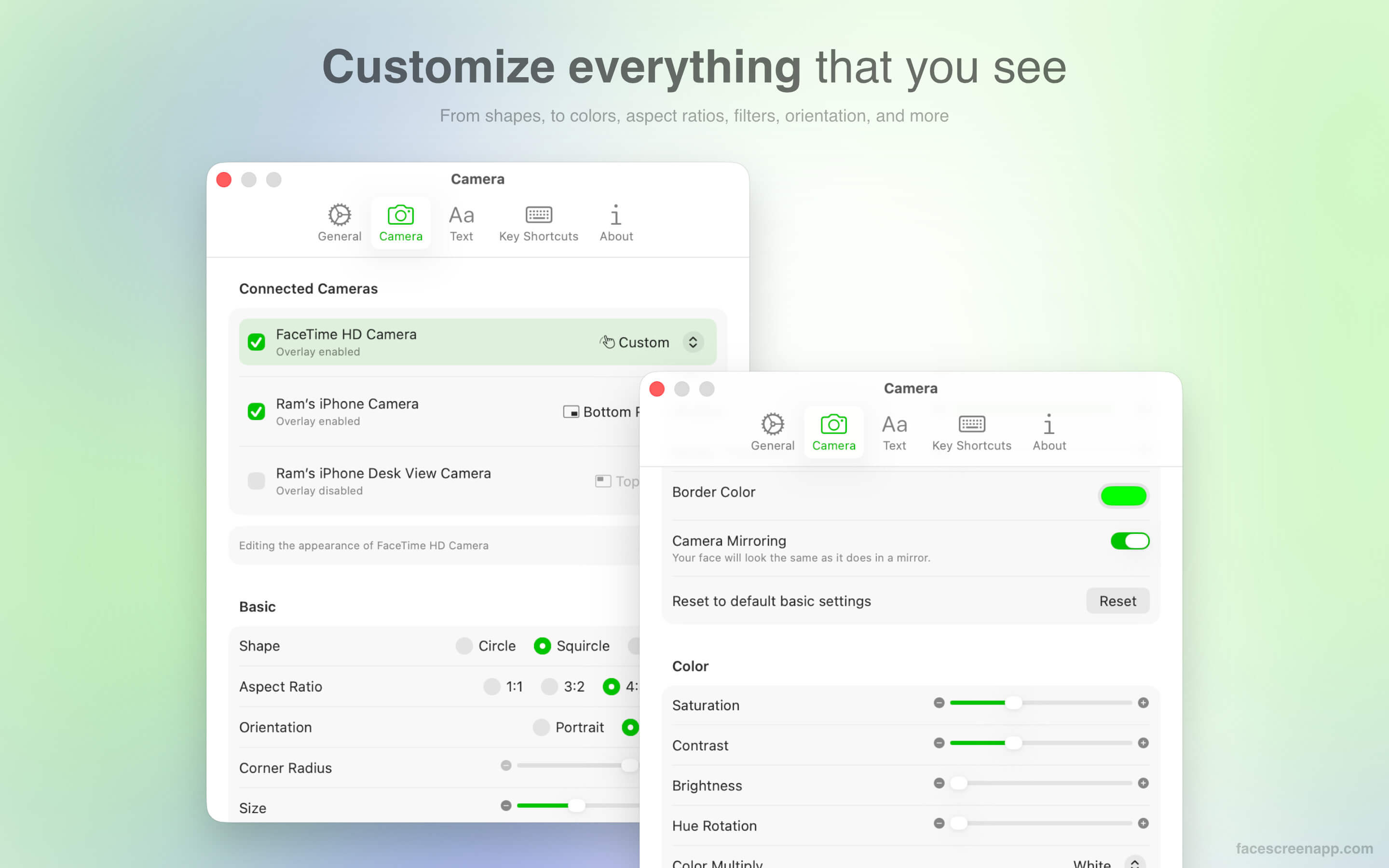
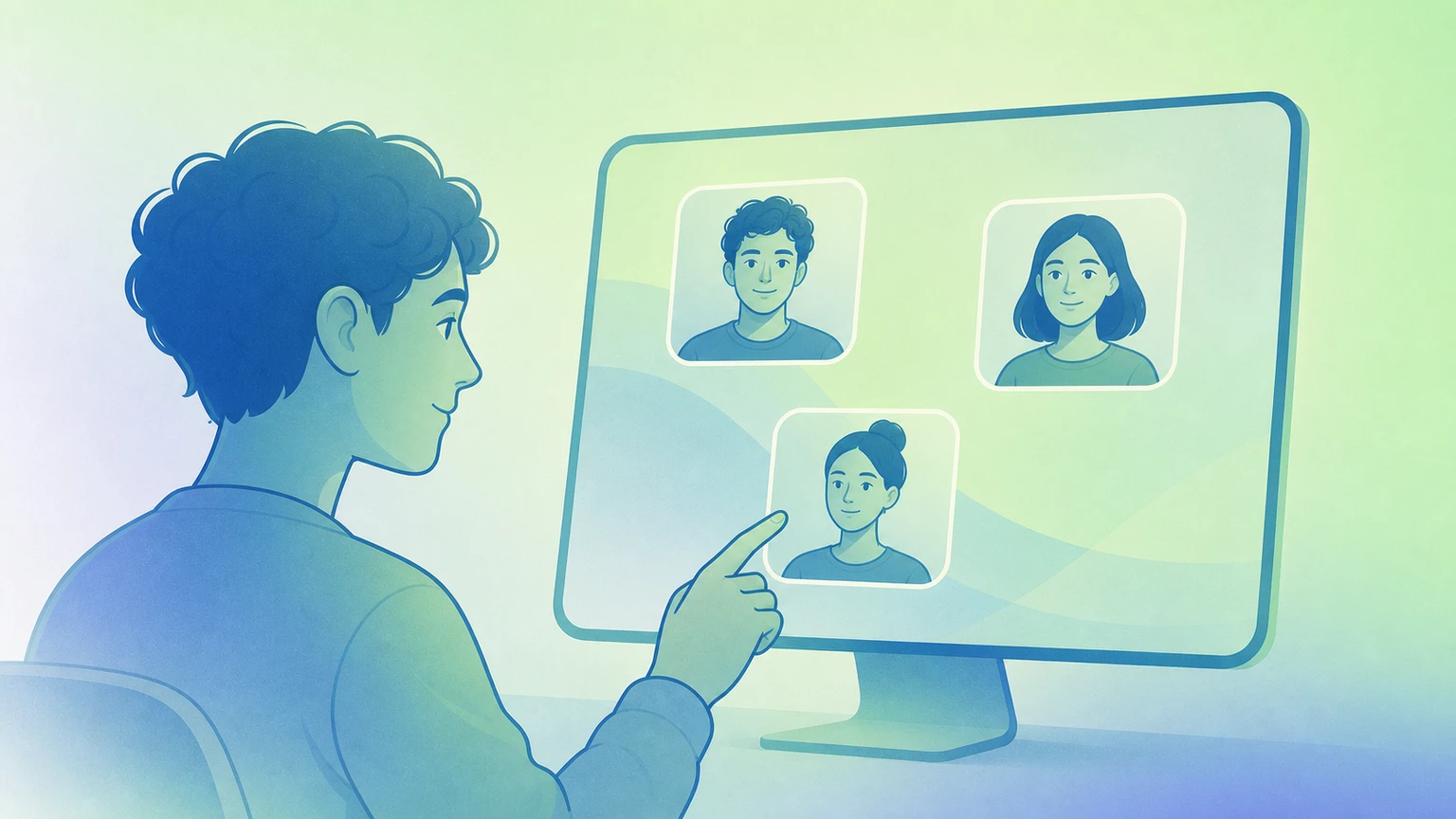
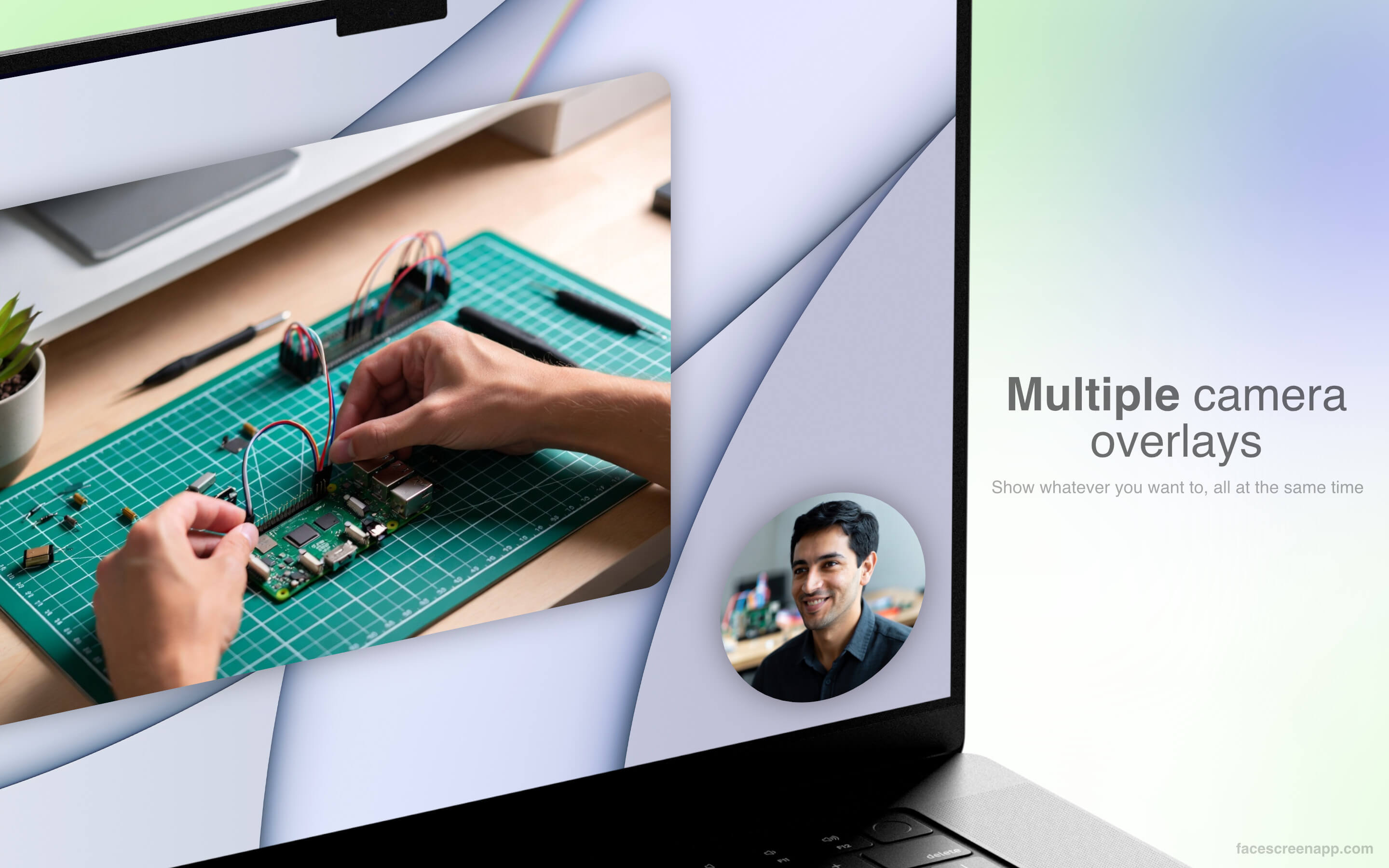
Multiple camera overlays (unique to FaceScreen)
FaceScreen is the only Mac app that lets you show several camera overlays at the same time, for example different angles or a guest beside you. Each overlay is independent: position, shape, styling, and shortcuts can all differ per camera, so one feed can stay minimal while another stays bold.
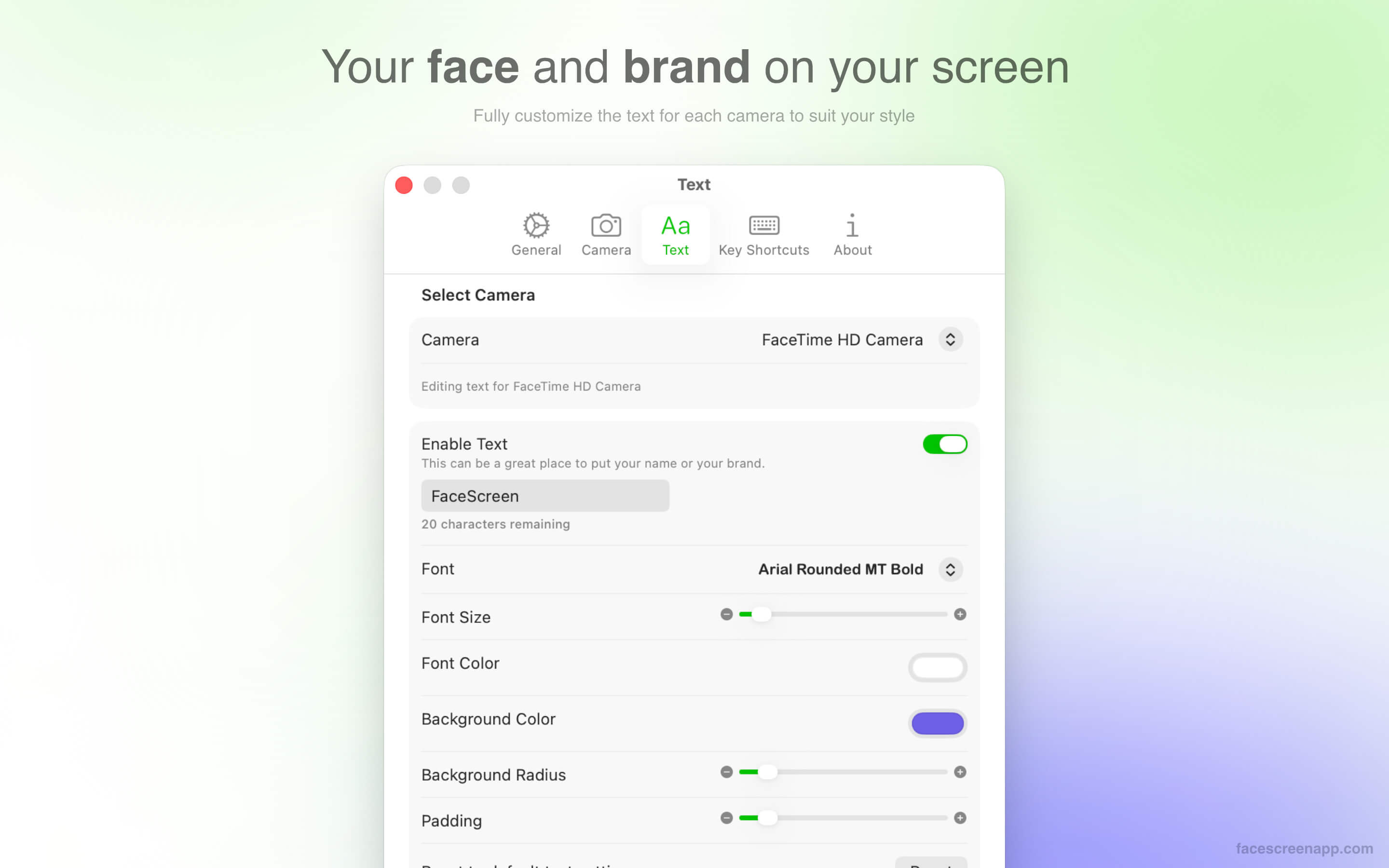
Text label next to your face
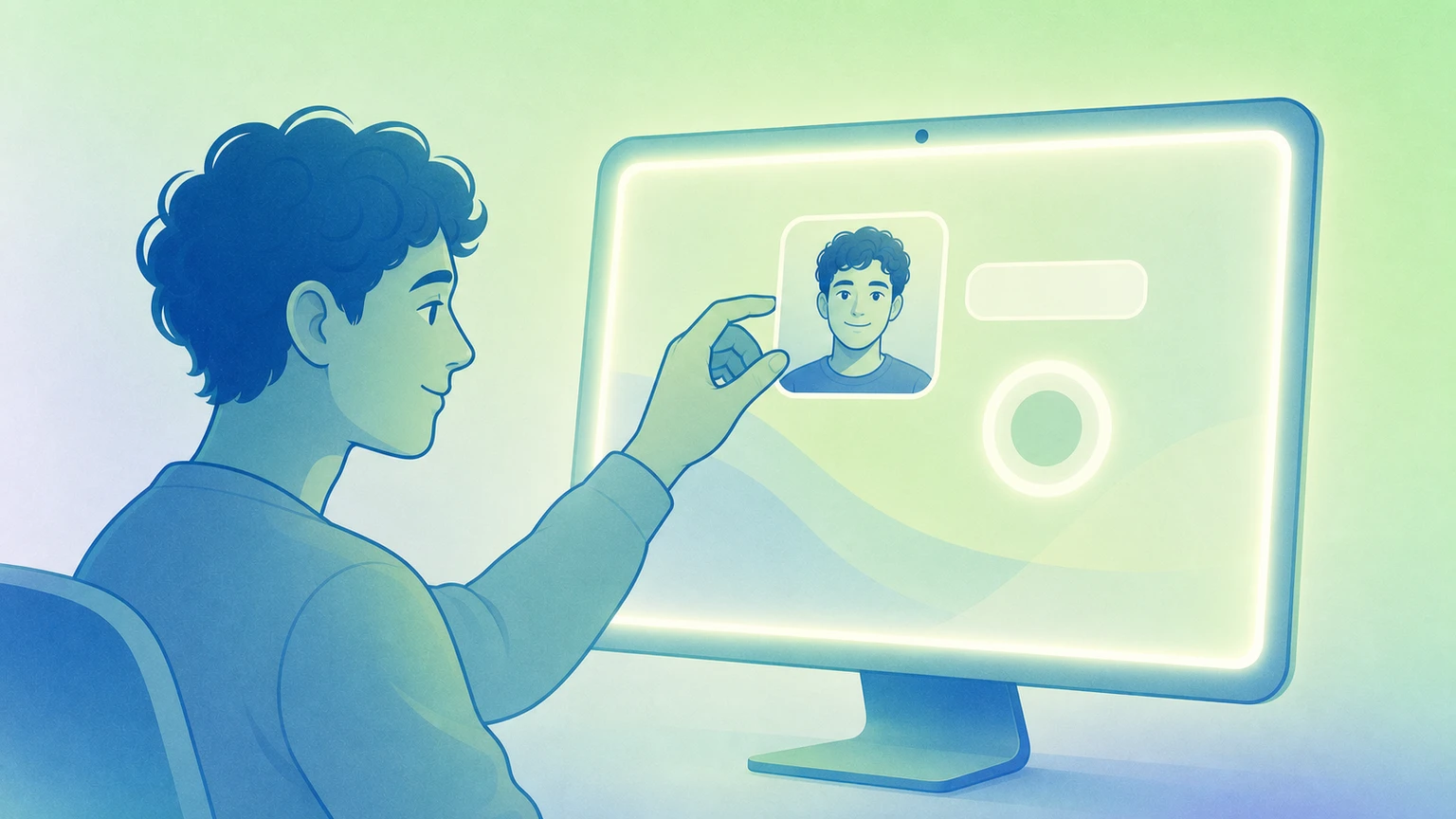
FaceScreen was the first app to pair a live face overlay with a customizable text label (your name, site, title, or social handle), so new viewers instantly know who you are. Tune fonts, colors, and backgrounds to match your brand, or hide the label and run camera-only when you do not need it.
Ring Light
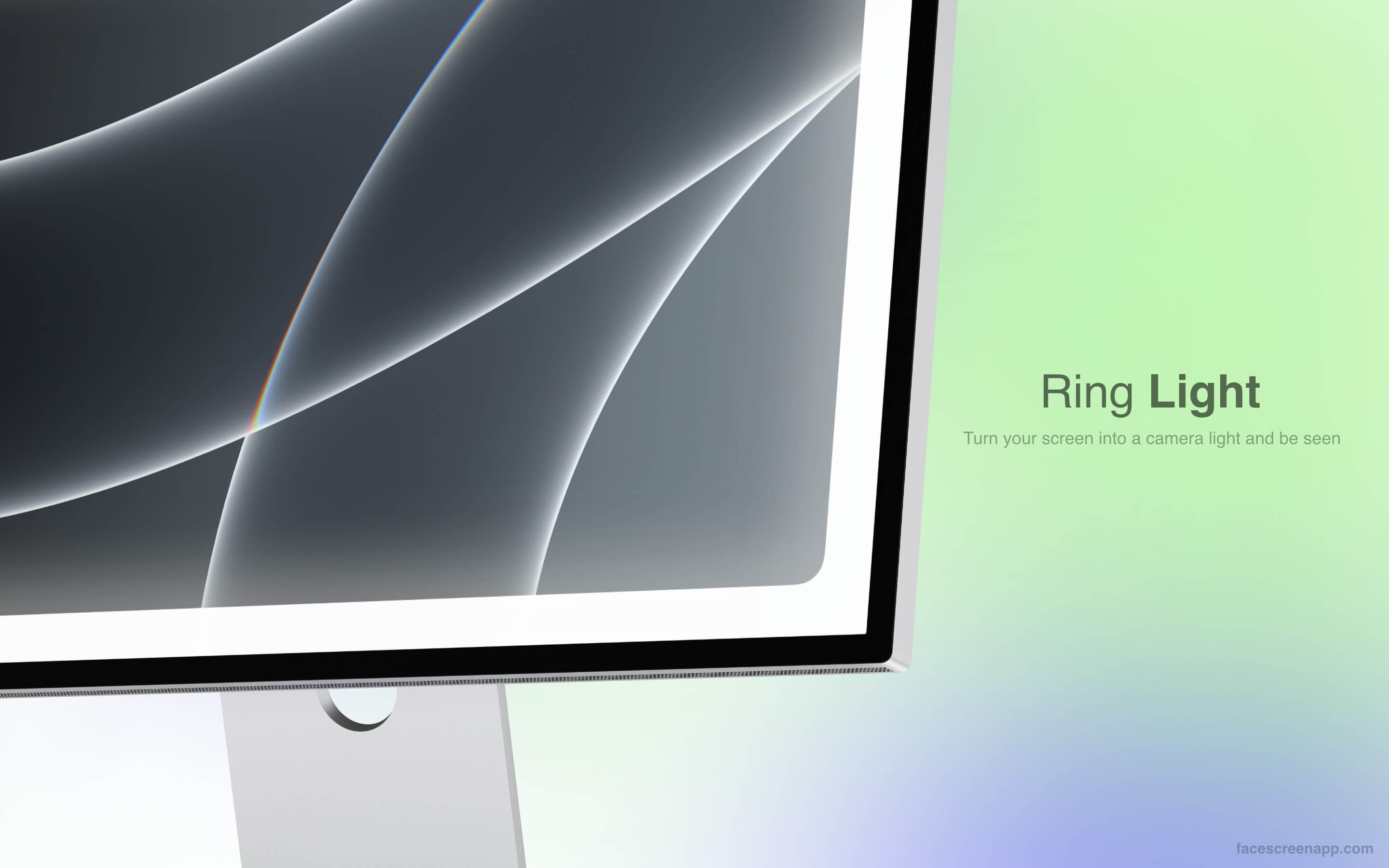
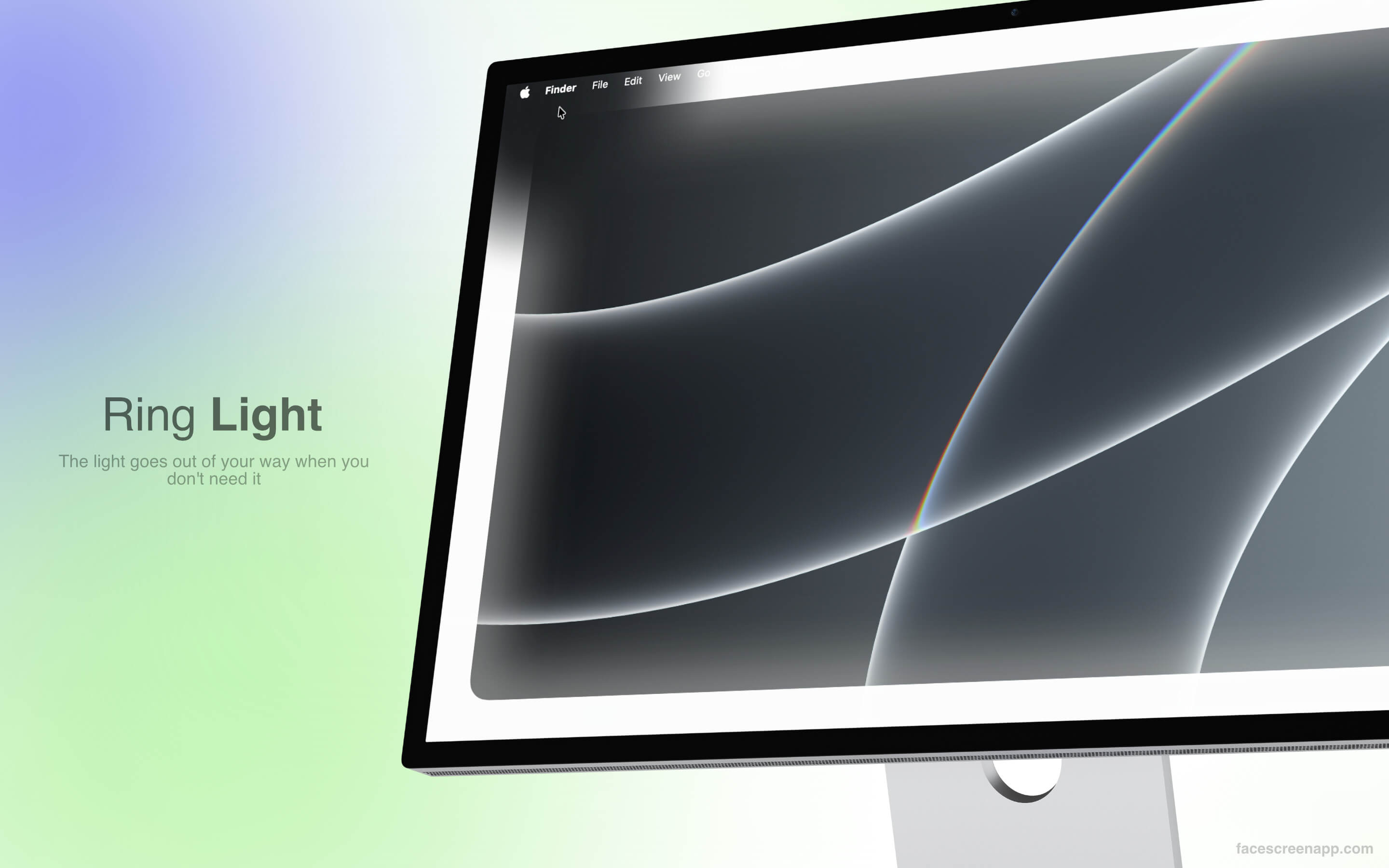
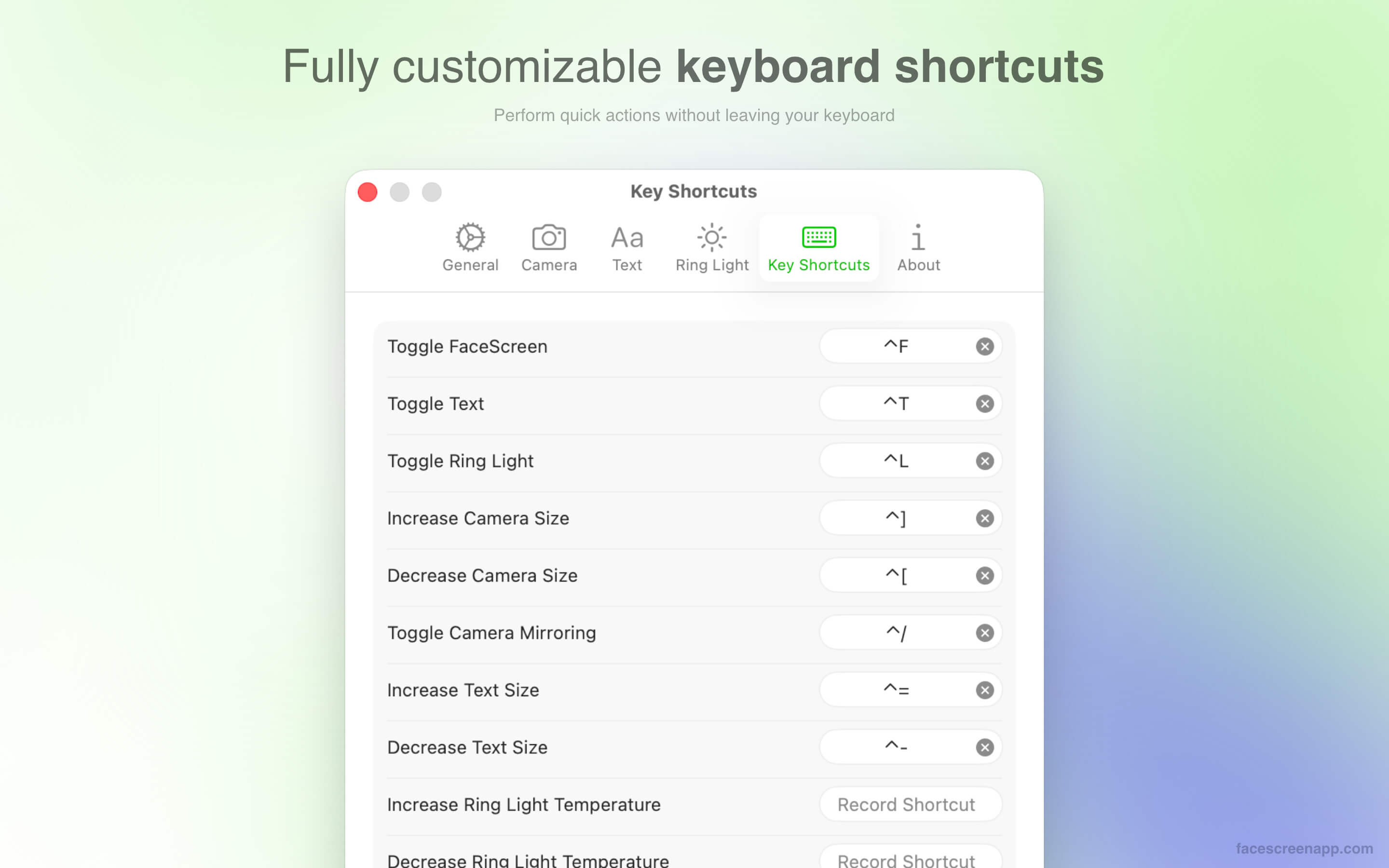
Ring Light turns your display into a soft wash of light so you look better on camera without a physical ring. It fades out of the way when you hover over it, and you can dial in temperature, brightness, and glow to match the room.
Ring Light vs. macOS Edge Light
Apple’s Edge Light and FaceScreen’s Ring Light both aim to help you look better on camera, but they are not the same experience:
- Light where the name suggests: Ring Light appears along the edge of your screen as a proper edge wash. macOS Edge Light is named for the edge, but the effect is not the same kind of full-screen edge glow, hence the smile in every demo.
- No camera required to use the light: Turn Ring Light on without connecting or activating a camera first. Edge Light is tied to the camera session you have in mind.
- Per-display control: Adjust the light separately for each display when you use multiple monitors.
- Global shortcuts: Assign keyboard shortcuts for every Ring Light action, so tweaks stay fast mid-call or mid-recording.
- Broader macOS support: Edge Light needs macOS 26 or later. FaceScreen Ring Light runs on macOS 15 and up (see the App Store listing).
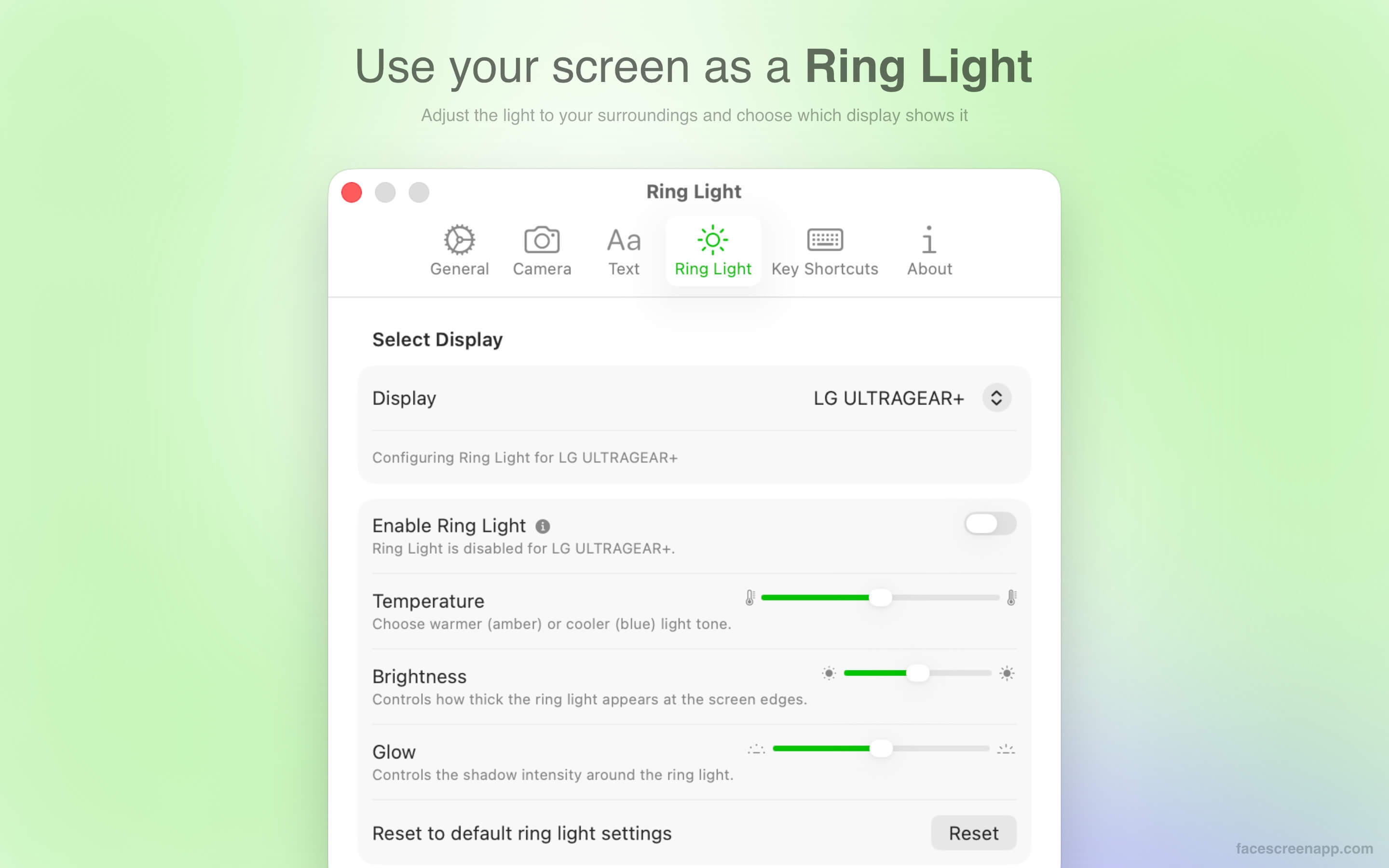
You can also wire global shortcuts for the Camera, Text, and Ring Light so you are never hunting through menus mid-session. Go to Settings... > Key Shortcuts to set them.
First-time setup checklist
- Install FaceScreen from the Mac App Store.
- Launch it from Spotlight and confirm camera permissions.
- Pin the camera bubble where it does not block critical UI.
- Add your name, role, or handle in the text overlay (optional but great for first impressions).
- Open Settings… and adjust camera overlay and text styling so they match your brand.