Mac Edge Light Went Viral: FaceScreen Ring Light Is Even Better
Use your Mac screen as a soft light for video calls and recordings. Change warmth, brightness, and glow per display. No extra lamp. Works on macOS 15 and up.
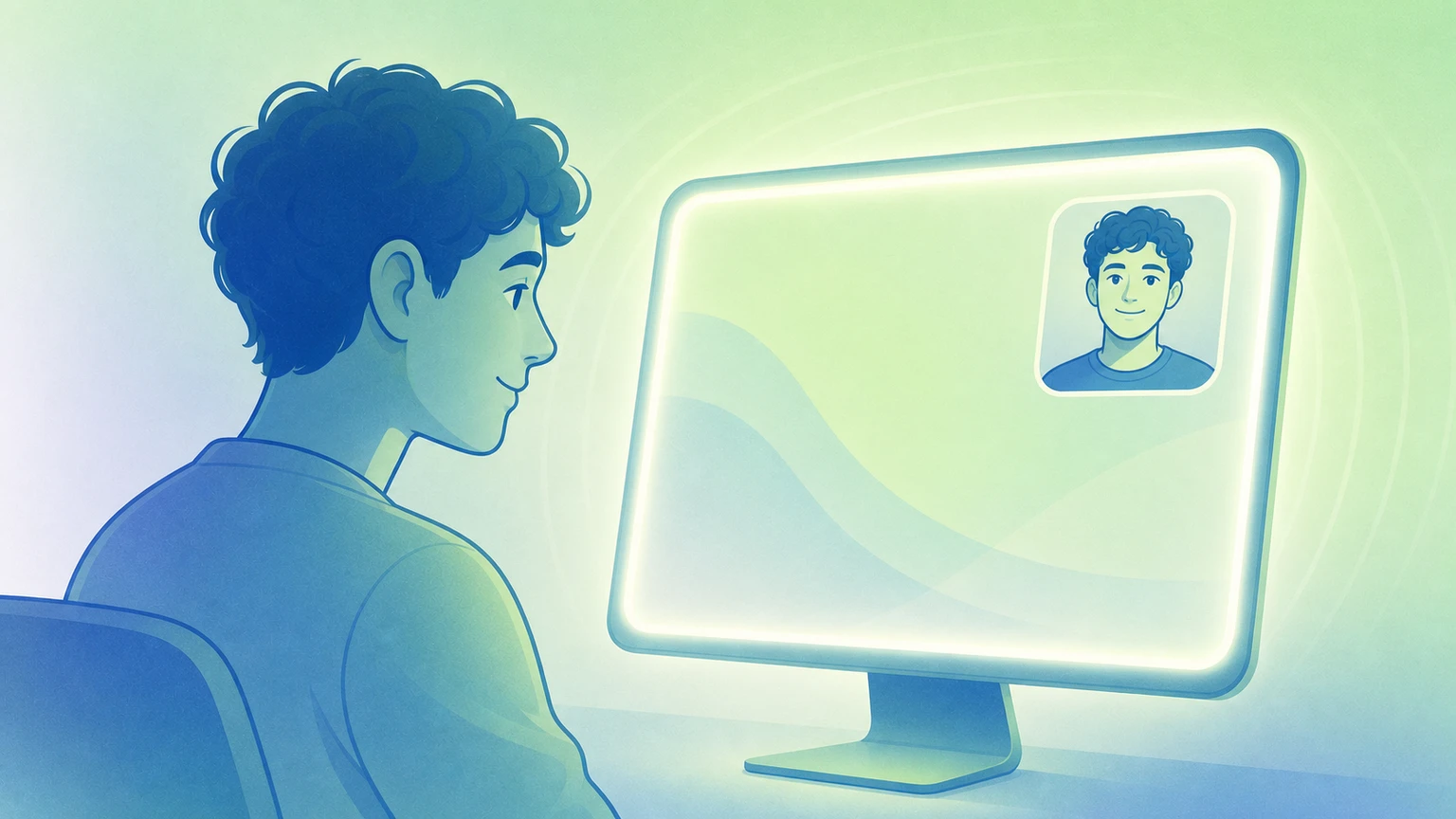
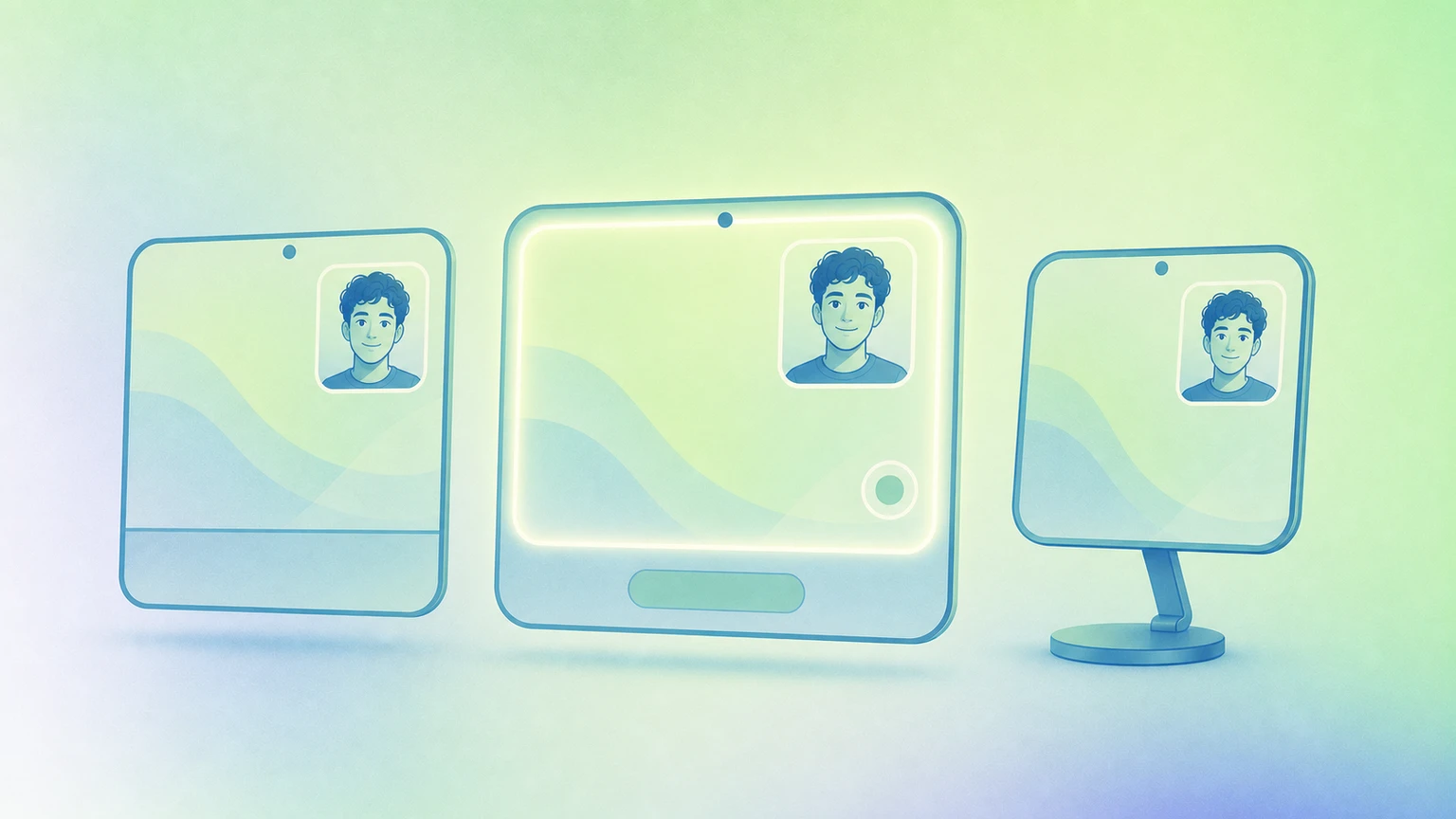
Edge Light on Mac got a lot of buzz. People like the idea of the computer helping them look better on camera. FaceScreen already includes Ring Light for the same goal: it lights your screen from the edges, alongside FaceScreen’s floating camera bubble and text label.
What Ring Light does
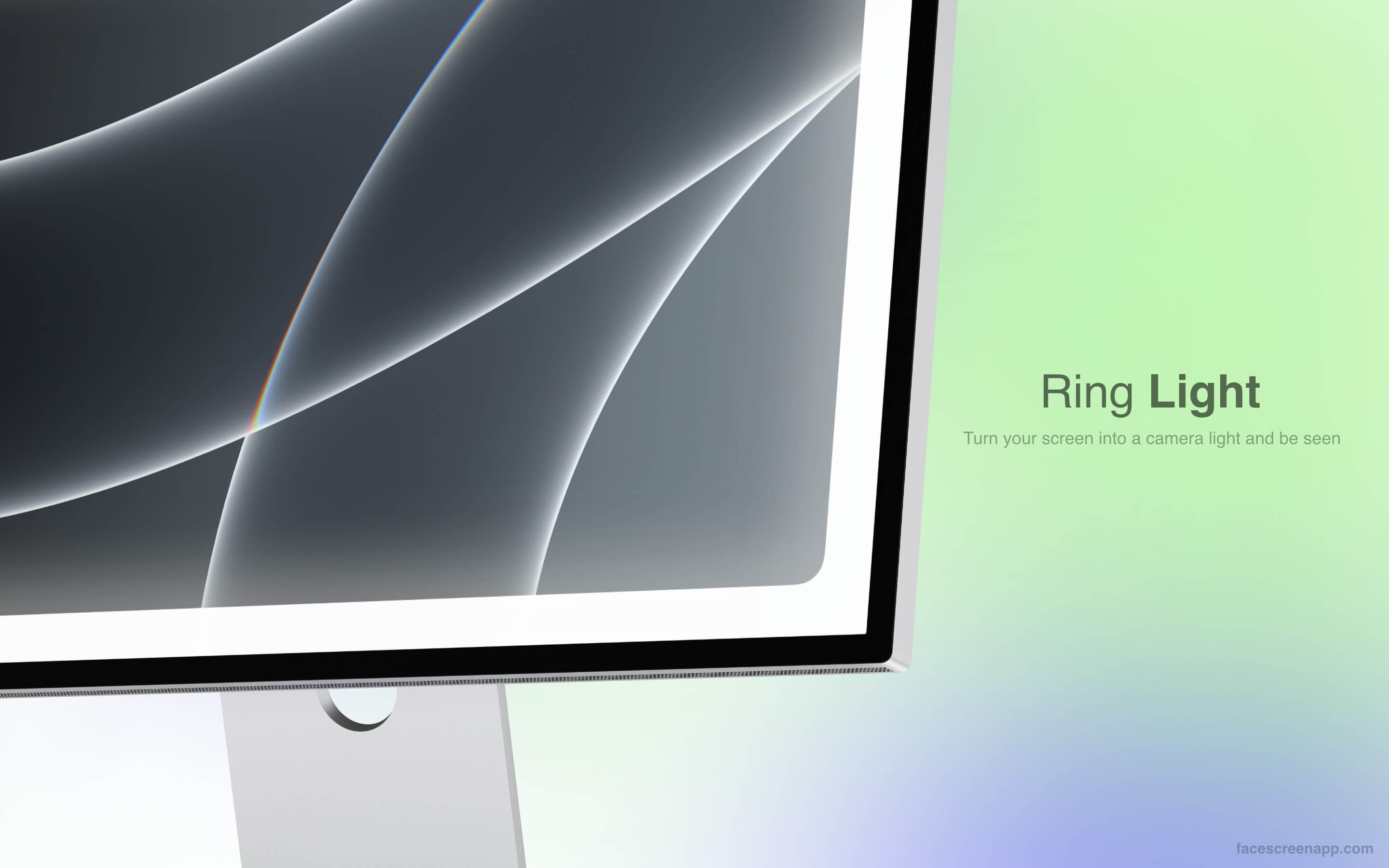
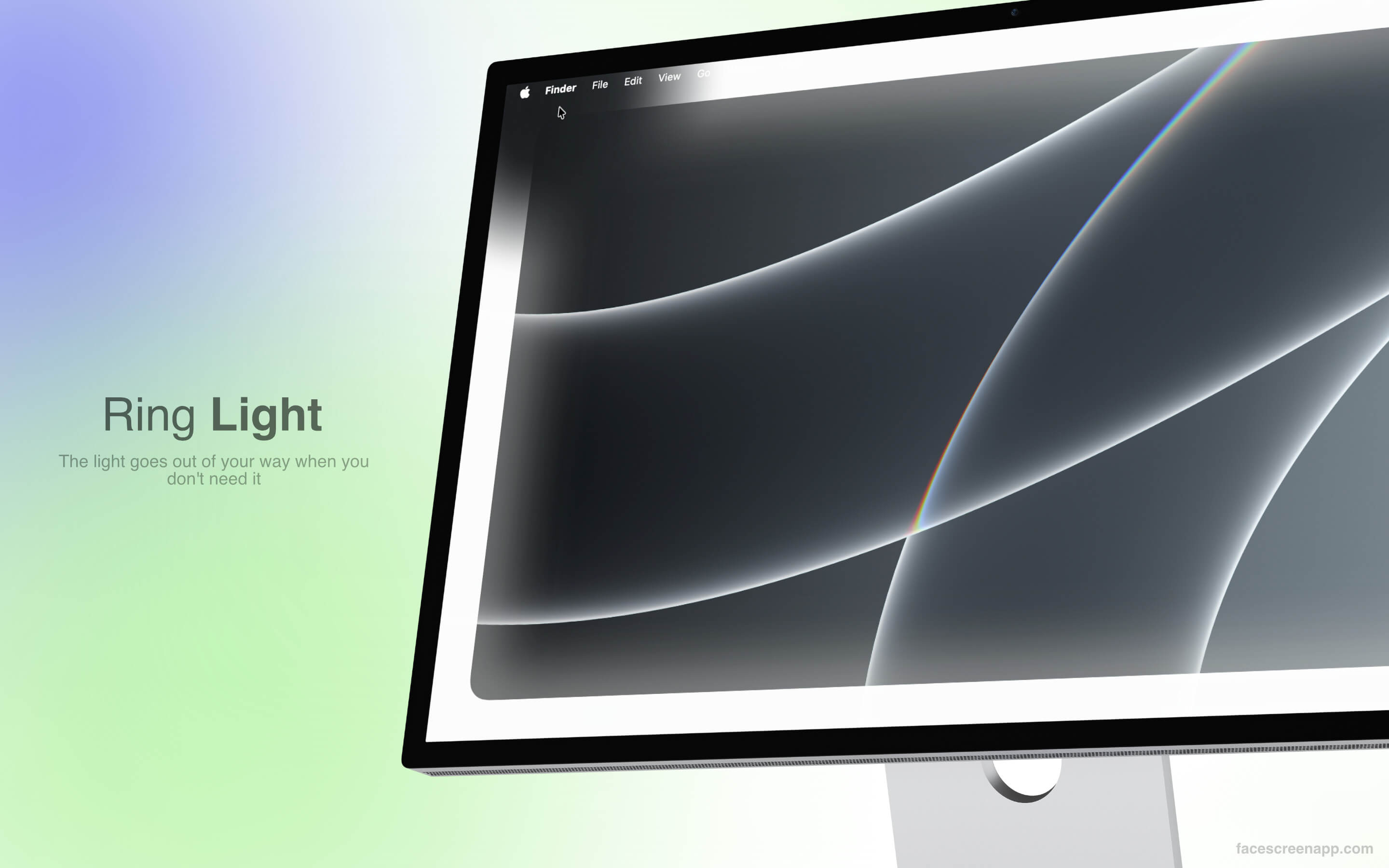
Ring Light uses your display as a soft light so your face looks clearer on camera. You do not need a real ring light on your desk.
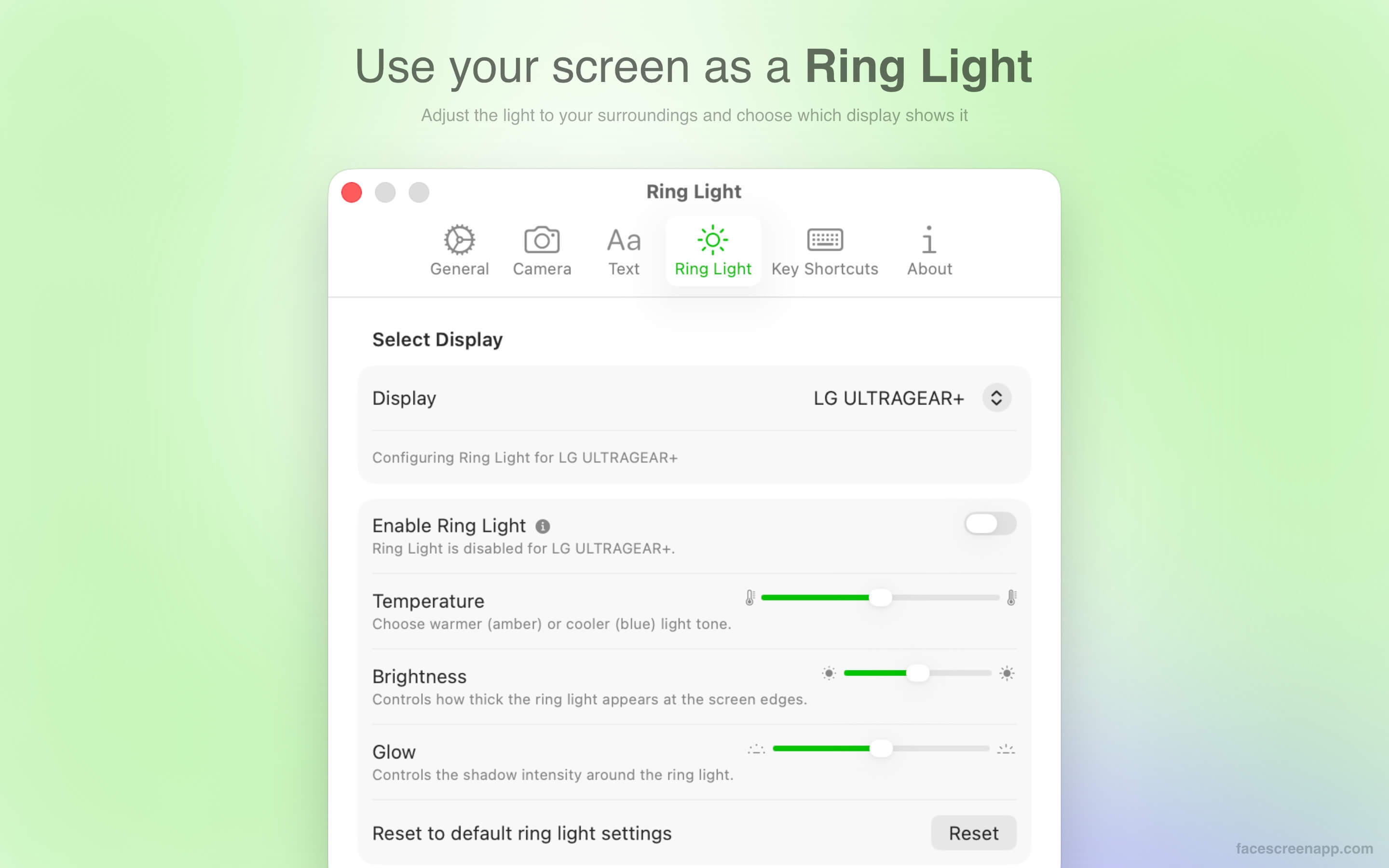
Move the mouse over the light and it fades, so you can click menus and windows underneath. In FaceScreen’s settings you can change temperature (warm or cool), brightness, and glow so the light fits the room.
More than one monitor
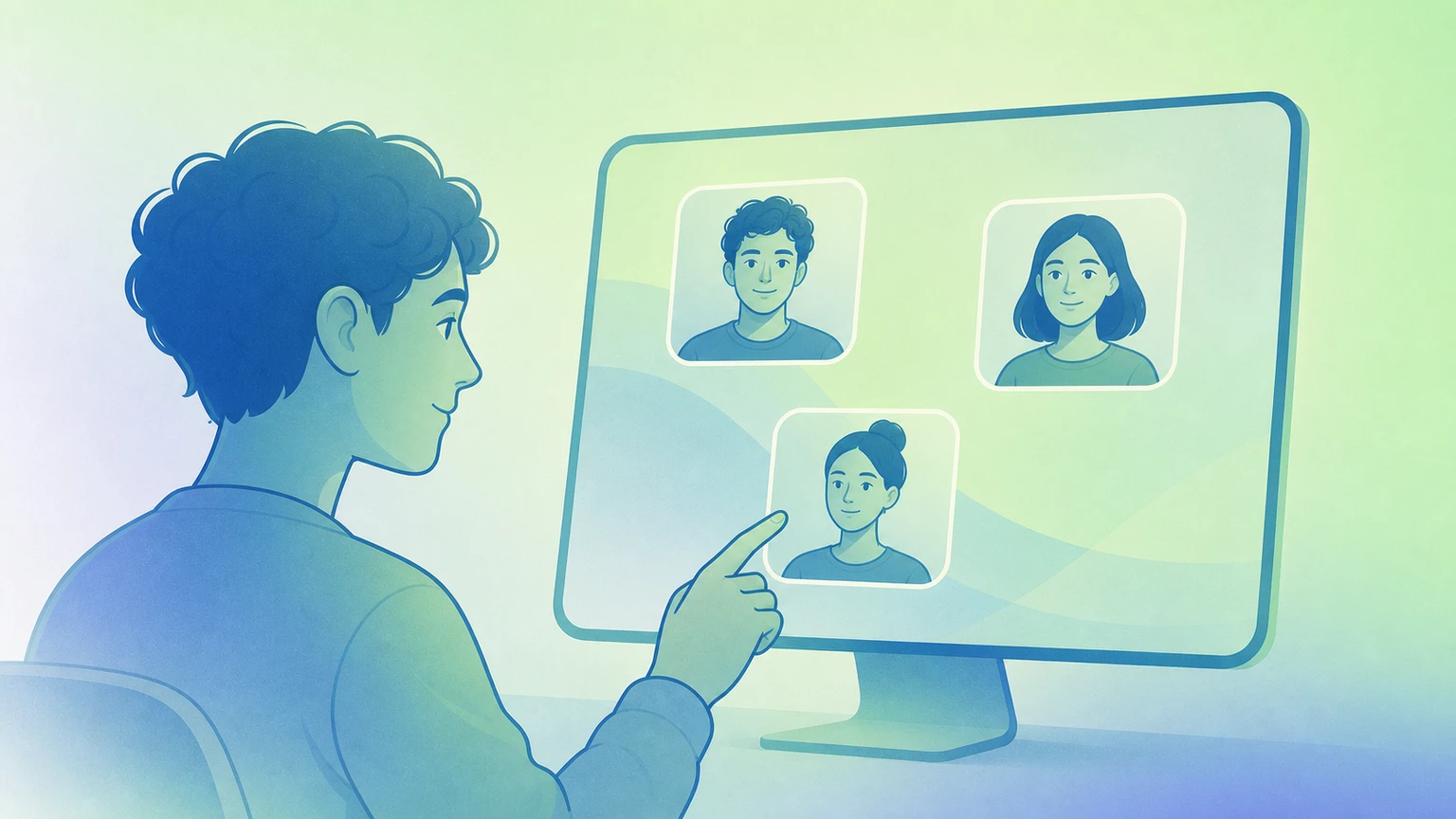
New builds of FaceScreen add shortcuts that work everywhere, separate settings for each display, and temperature, brightness, and glow per screen when you use more than one monitor.
Ring Light vs. macOS Edge Light
Both features try to make you look better on camera. In practice they are not the same:
- Where the light sits: FaceScreen Ring Light is built as a wash along the edge of your screen. macOS Edge Light sounds like an edge light, but many users see a brighter ring nearer the middle of the display. That can cover part of your workspace and feel busy when you work while the light is on.
- Camera on or off: You can turn Ring Light on without turning a camera on first. Edge Light is tied to the camera you are using for video.
- Two or more screens: With Ring Light you can tune the light for each display.
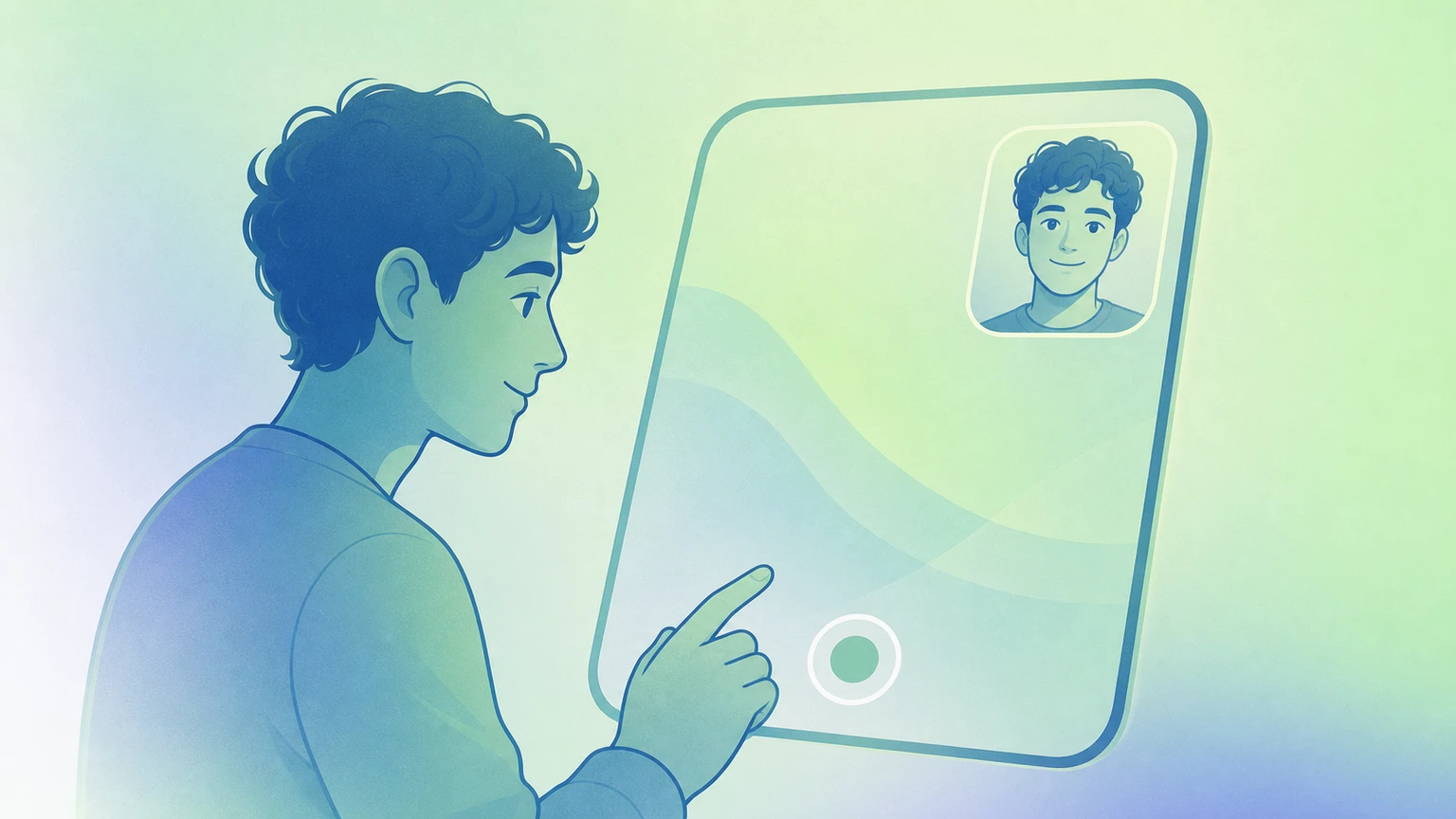
- Shortcuts: In FaceScreen you can map shortcuts to Ring Light actions so you are not clicking through menus while you present.
- Broader macOS support: Edge Light needs macOS 26 or later. FaceScreen Ring Light runs on macOS 15 and up (see the App Store page).
Shortcuts
When the light looks good to you, set keyboard shortcuts so you can turn Ring Light on or off and change it from the keyboard. In FaceScreen open Settings…, then Key Shortcuts, for Camera, Text, and Ring Light. For sample shortcuts you can copy or edit, see Keyboard shortcuts that speed up FaceScreen.
Try it
- Install FaceScreen from the Mac App Store.
- Open Ring Light from the menu bar.
- Set temperature, brightness, and glow for each display (optional).
- Add keyboard shortcuts for the Ring Light features you use the most (optional but recommended).
If you are new to FaceScreen, Getting started with FaceScreen on Mac explains the camera overlay, text label, and how it all fits together for calls and recordings.