Keyboard Shortcuts That Speed Up FaceScreen
Set up a few focused shortcuts to toggle camera, text overlays, and ring light without breaking your momentum.
Why shortcuts matter
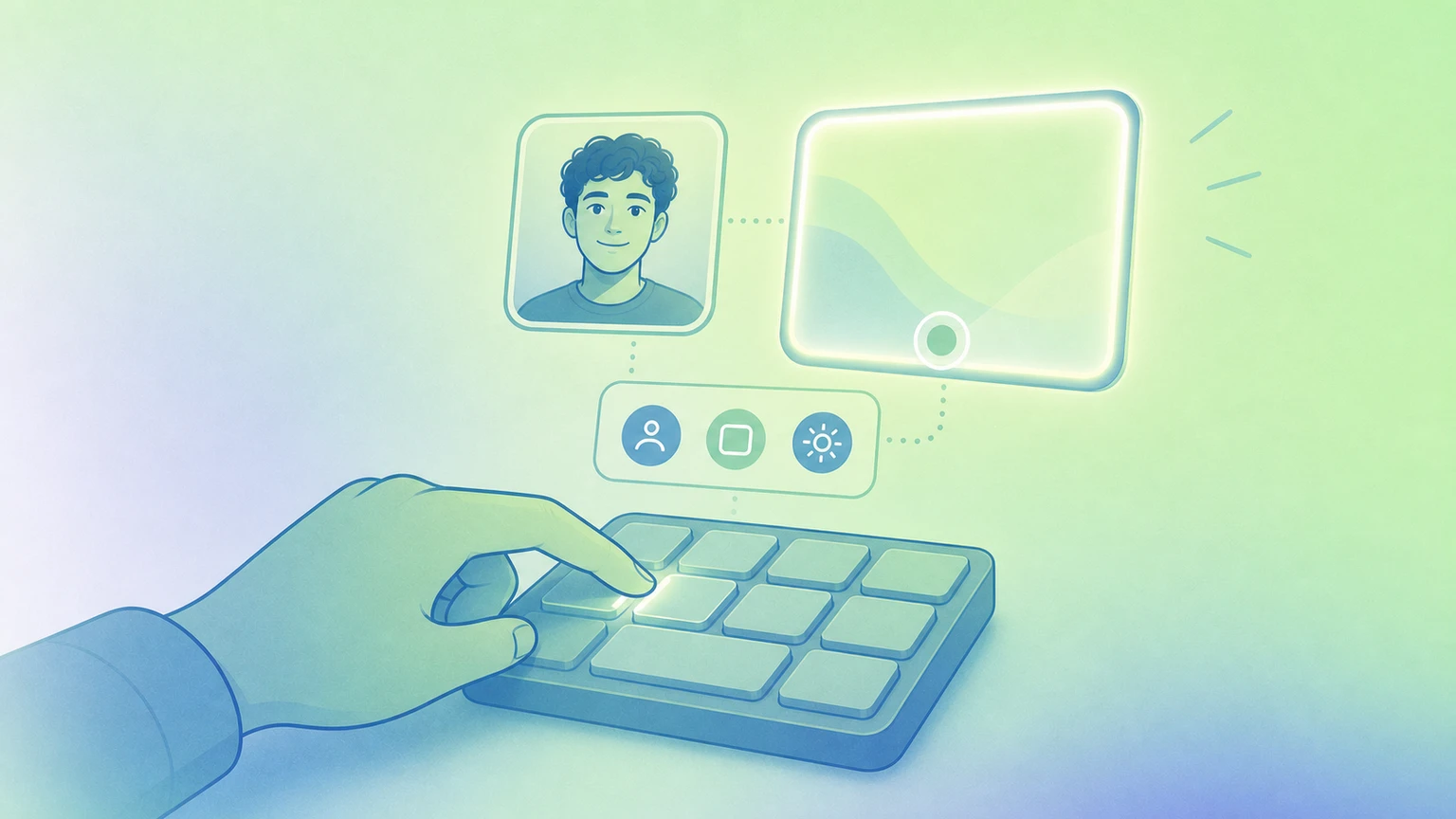
Using your mouse to interact with FaceScreen interrupts your flow, especially when presenting. Keyboard shortcuts keep your eyes on content and your speaking pace consistent.
They also make hardware control easy. If you use Stream Deck (or similar macro pads), you can map each FaceScreen shortcut to a single physical button and toggle features instantly without switching apps.
Suggested shortcut set
These are good suggestions to start with. Treat them as a baseline and remap anything that feels better for your workflow.
| Action | Suggested Shortcut | Why it helps |
|---|---|---|
| Toggle FaceScreen | ⌃F | Quickly show or hide your camera bubble while presenting |
| Toggle Text | ⌃T | Hide or show text overlays without touching the mouse |
| Toggle Ring Light | ⌃L | Enable or disable lighting based on your environment |
| Increase Camera Size | ⌃= | Make your camera more prominent during explanations |
| Decrease Camera Size | ⌃- | Reduce camera footprint when screen space is limited |
| Toggle Camera Mirroring | ⌃\ | Flip your camera feed left-to-right instantly |
| Increase Text Size | ⌃⇧= | Boost readability for viewers on smaller screens |
| Decrease Text Size | ⌃⇧- | Pull text back when it feels too dominant |
| Increase Ring Light Temperature | ⌃⌥⌘= | Warm up lighting quickly |
| Decrease Ring Light Temperature | ⌃⌥⌘- | Cool down lighting quickly |
| Increase Ring Light Brightness | ⌃⌘= | Broaden light spread for a brighter glow |
| Decrease Ring Light Brightness | ⌃⌘- | Narrower light spread, more room on the screen |
To set keyboard shortcuts in FaceScreen, go to Settings... > Key Shortcuts. You should see a window like this:
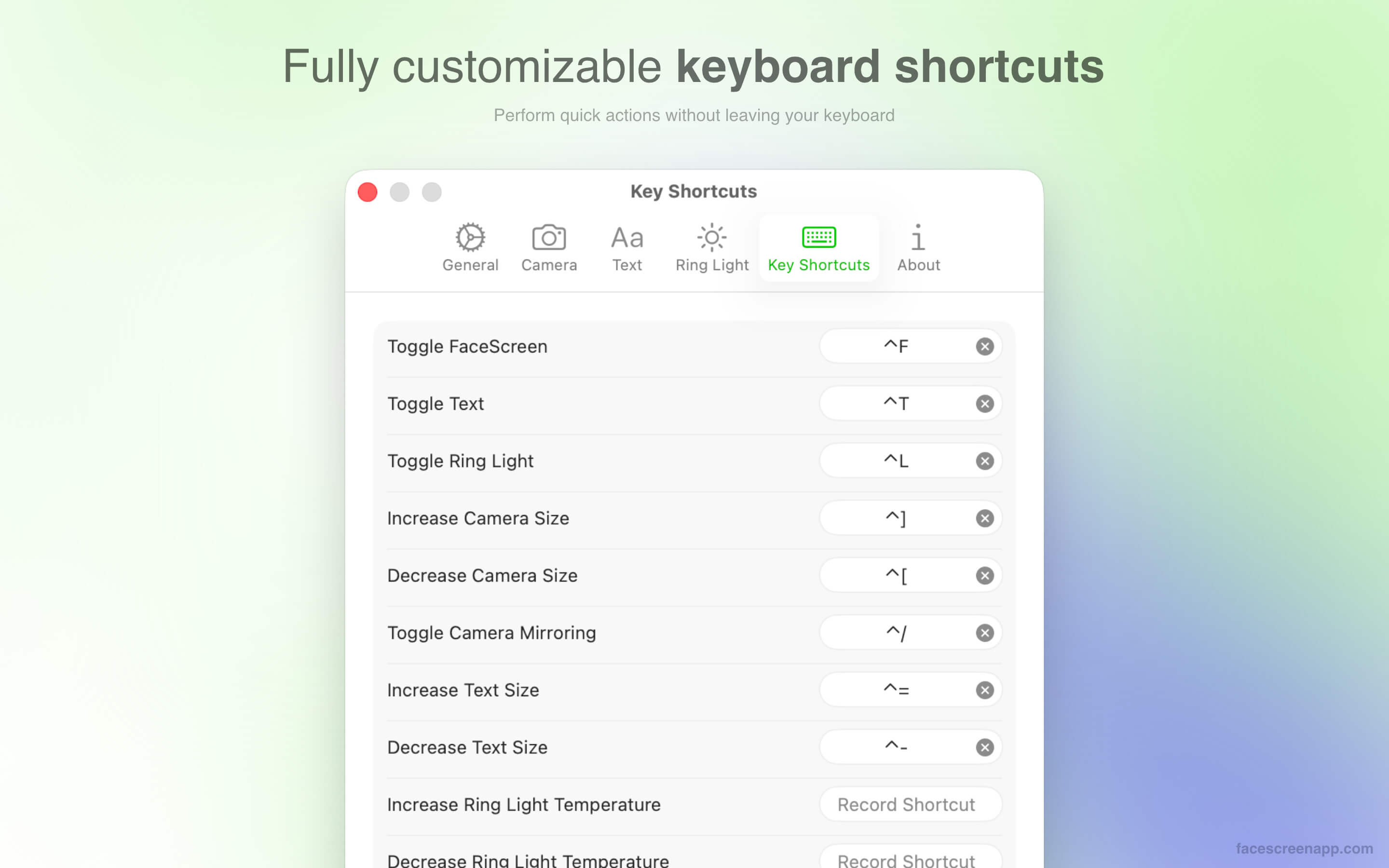
Customize to match your setup
- Start with the defaults, then adjust anything that feels awkward after a few sessions.
- Avoid shortcuts already used by your editor, browser, presentation, or meeting app.
- Keep related actions grouped so they are easy to memorize.
Quick test routine
Before a call, run a 20-second rehearsal: toggle FaceScreen, adjust camera size, and test the ring-light shortcuts. If anything feels awkward, remap it right away.